
Get started
What brand is your car?
The first setup takes about 5 minutes. After that, just open the app in the car and tap Start.
Install the OpenXPlay beta
- On the iPhone, install TestFlight from the App Store.
- On the iPhone, open the invitation link: Join the OpenXPlay beta.
- In TestFlight, tap Accept, then Install.
The app installs on iPhones with iOS 17.4 or later; showing CarPlay needs iOS 18 or later, and earlier versions can only cast the iPhone’s screen.
Allow access
The first time you open the app, allow Local Network when asked; CarLink also needs Bluetooth. CarPlay needs nothing else turned on.
Choose your car
Go to Settings → Car and choose the brand, model and year. The app recommends a way to connect and a scheme from it.
Can’t find your car? Send it with “Can’t find your car? Enter it here” at the bottom of the list, and we’ll add it.
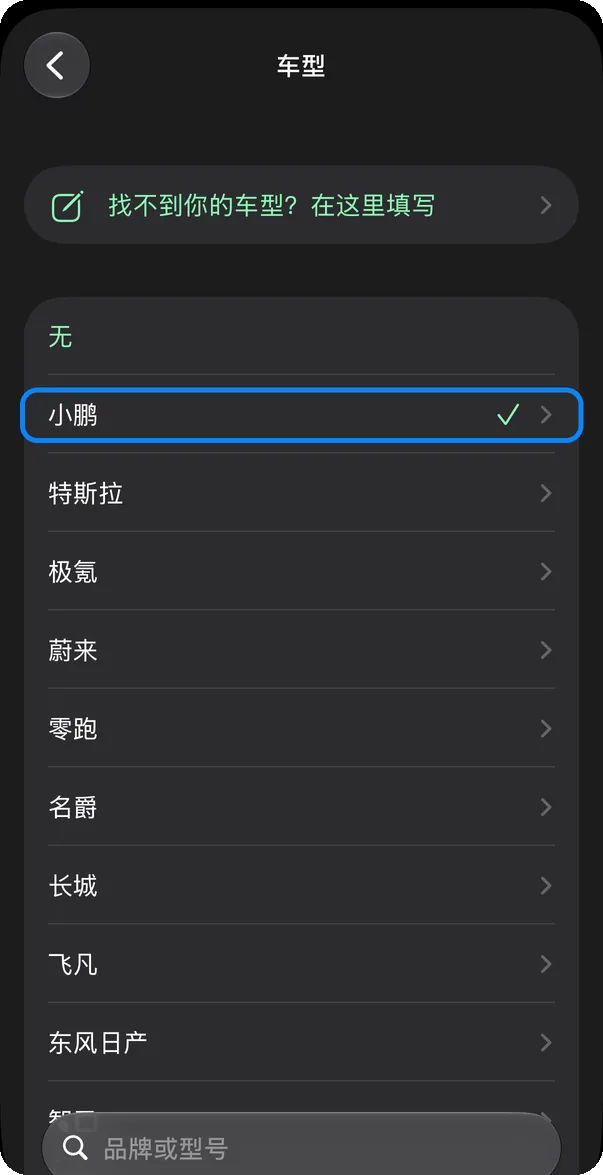
Choose how to connect
Open the phone-link app on the head unit
Start the head unit’s phone-link app (common names are Carlink or 手机投屏 Phone Cast) and leave it on the screen that waits for a phone. This CarLink is not 亿连 (Easy Connection), and OpenXPlay does not support Easy Connection. CarLink needs no separate Wi-Fi; the iPhone joins the head unit by itself.
Choose CarLink and a scheme
On the app’s home screen, choose CarLink, then a scheme:
| Scheme | When to use it |
|---|---|
| CarLink (Combined) Recommended | Try this first; it suits most cars |
| Leapmotor C10 | Leapmotor cars; once you choose the car, the app lists it first |
| MG7 | The MG MG7; once you choose the car, the app lists it first |
| Universal 1–4, Memorial | Under More schemes; try them one by one if the recommended scheme doesn’t work |
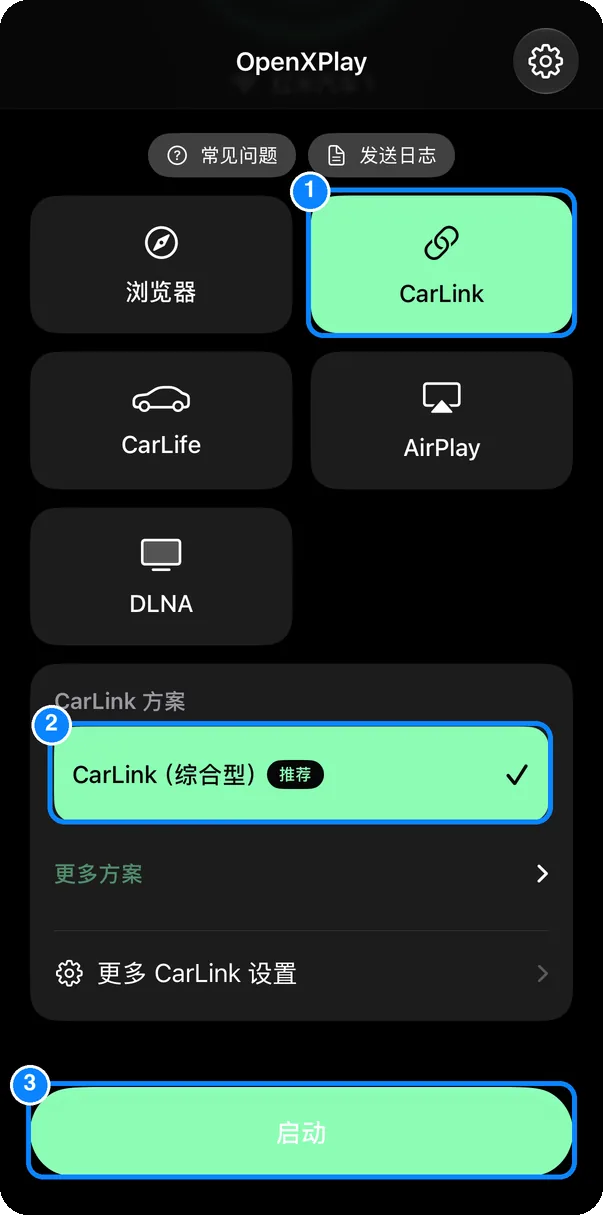
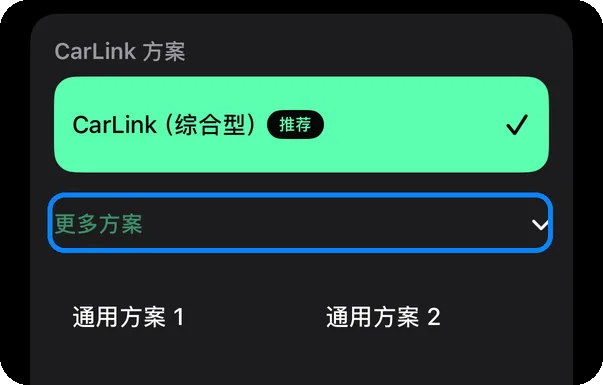
Start and wait for the head unit
Tap Start, then watch the ring on the home screen:
- % Percentage counting up: CarPlay is starting; wait for it to finish.
- Icon pulsing: CarPlay has started and is waiting for the head unit to connect. Go to the head unit now.
- Checkmark: the head unit is connected.
- Exclamation mark: the head unit didn’t connect; the app keeps retrying.
Connecting usually takes 10 to 30 seconds. Please wait; there’s no need to tap Start again.
If the head unit shows a pairing code (PIN), enter it on the iPhone and confirm quickly; the code changes periodically.
If the iPhone shows Connecting… and asks you to check the pairing information on the car display, just tap × at the top right to close it.
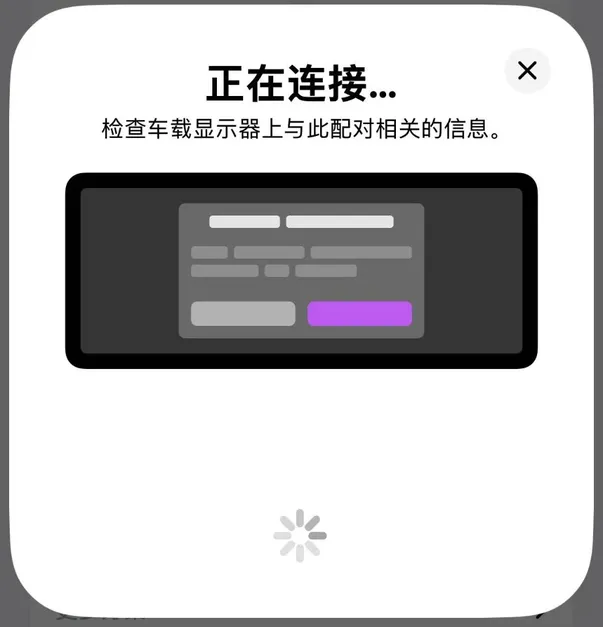
You’re done when CarPlay appears on the head unit. Next time, open the phone-link app and tap Start in the app.
Put the iPhone and the head unit on the same Wi-Fi
Under Settings → Wi-Fi, enter the name and password of the Wi-Fi this iPhone joins and choose its band. Then connect both the iPhone and the head unit to this Wi-Fi.
- Works: a router, the car’s hotspot, an Android phone’s hotspot, a pocket Wi-Fi.
- Doesn’t work: this iPhone’s own Personal Hotspot.
Choose Browser and start
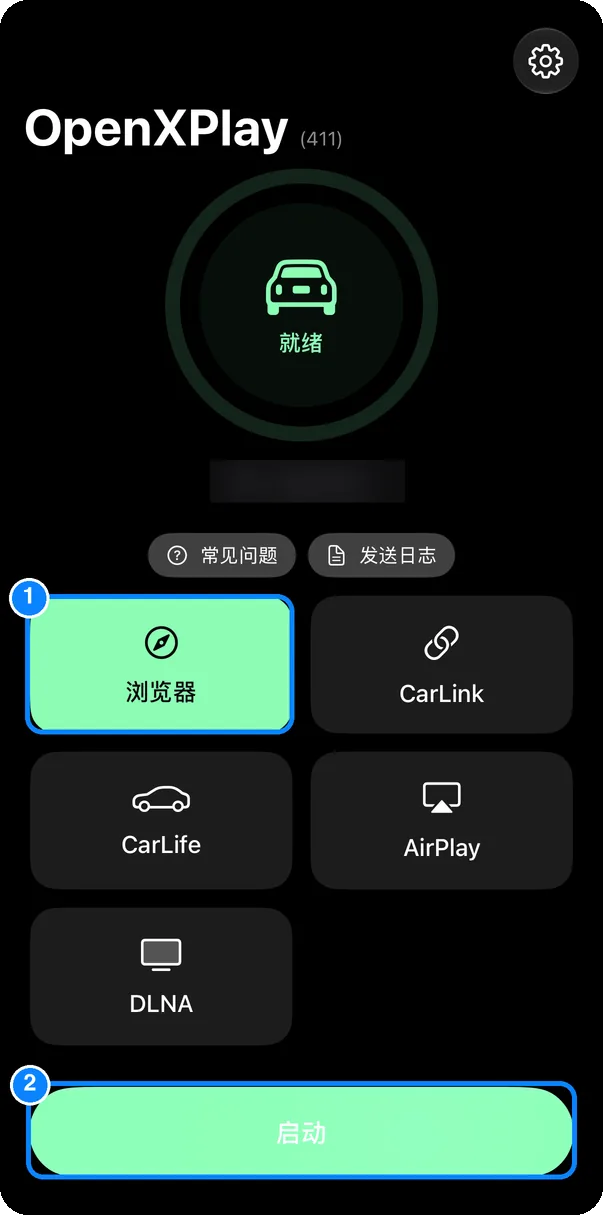
On the app’s home screen, choose Browser and tap Start.
The first time, the app asks how the devices are connected: choose 2 devices or 3 devices, then the connection that matches yours. You can change it later in Settings.
Wait for the address and open it in the head unit browser
After you start, watch the ring on the home screen:
- % Percentage counting up: CarPlay is starting; wait for it to finish.
- Icon pulsing: CarPlay has started and is waiting for the head unit to connect. Go to the head unit now.
- Checkmark: the head unit is connected.
- Exclamation mark: the head unit didn’t connect; the app keeps retrying.
When the ring completes, the home screen shows an address. Enter it in the head unit browser; once the page opens, tap the screen once and CarPlay appears.
If the browser says the connection isn’t secure, choose to continue. If it won’t let you continue, set up trusted HTTPS.
Send the sound to the car
Connect the iPhone to the head unit over Bluetooth and switch the head unit’s audio source to Bluetooth; CarPlay’s sound then plays through the car.
Get a third device ready
Get a Wi-Fi network ready for the iPhone: an Android phone’s hotspot, a pocket Wi-Fi or a dashcam’s Wi-Fi all work.
Connect the network
- Join the iPhone’s Wi-Fi to the device from the previous step.
- Turn on the iPhone’s Personal Hotspot and join the head unit’s Wi-Fi to it. Use 5 GHz if you can; on a Tesla, also turn on Remain Connected in Drive in the Wi-Fi settings.
- Keep the iPhone’s cellular data on.
Turn on Tesla mode
In OpenXPlay Settings, open Tesla mode and allow it to add a VPN configuration when asked. If the iPhone is connected to another VPN, disconnect it first.
NIO, Zeekr and Li Auto also need to turn on the Tesla mode switch on this page; with a Tesla model chosen, you don’t.
Set up the address
Back on the home screen, under HTTPS, set up a Public name or an Address name (no account needed). A public name is recommended for Tesla and Zeekr; the steps for DuckDNS, dynv6, Alibaba Cloud and Tencent Cloud are in Trusted HTTPS.
Start and wait for green checkmarks
On the home screen, choose Browser and tap Start. The app checks the VPN, the address and the domain one by one; wait until the home screen shows green checkmarks everywhere.
Then open the address shown on the home screen in the head unit browser, with the port number at the end, for example https://your-domain:8443.
Put the iPhone and the head unit on the same Wi-Fi
Under Settings → Wi-Fi, enter the name and password of the Wi-Fi this iPhone joins and choose its band. Then connect both the iPhone and the head unit to this Wi-Fi.
- Works: a router, the car’s hotspot, an Android phone’s hotspot, a pocket Wi-Fi.
- Doesn’t work: this iPhone’s own Personal Hotspot.
Open CarLife on the head unit
Start CarLife on the head unit and leave it on the screen that waits for a phone.
Start and wait for the head unit
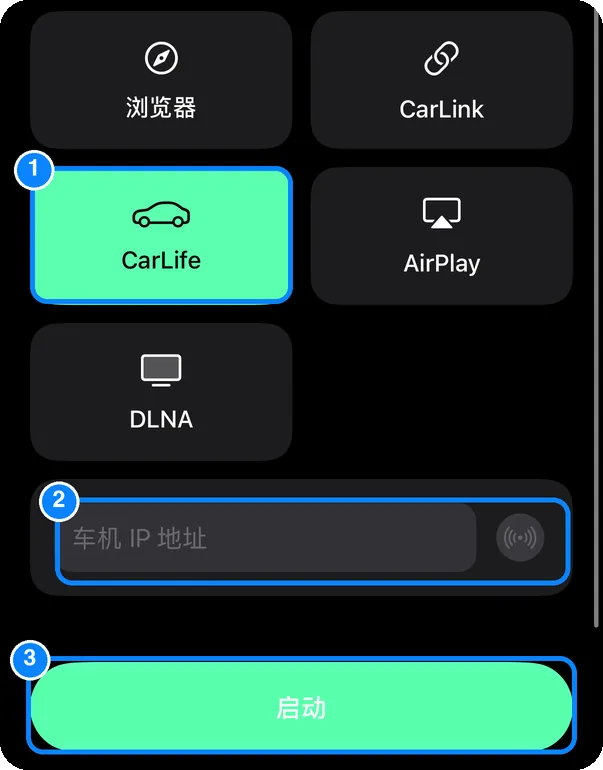
On the app’s home screen, choose CarLife, tap Start, then watch the ring on the home screen:
- % Percentage counting up: CarPlay is starting; wait for it to finish.
- Icon pulsing: CarPlay has started and is waiting for the head unit to connect. Go to the head unit now.
- Checkmark: the head unit is connected.
- Exclamation mark: the head unit didn’t connect; the app keeps retrying.
If the app can’t find the head unit, enter the Head unit IP address when asked (it’s shown in the head unit’s Wi-Fi settings).
Put the iPhone and the head unit on the same Wi-Fi
Under Settings → Wi-Fi, enter the name and password of the Wi-Fi this iPhone joins and choose its band. Then connect both the iPhone and the head unit to this Wi-Fi.
- Works: a router, the car’s hotspot, an Android phone’s hotspot, a pocket Wi-Fi.
- Doesn’t work: this iPhone’s own Personal Hotspot.
Open screen-casting reception on the head unit
Turn on the head unit’s screen-casting receiver (common names are 无线投屏 Wireless Display, DLNA or 多屏互动 Multi-screen) and leave it on the screen that waits for a connection.
Start and wait for the head unit
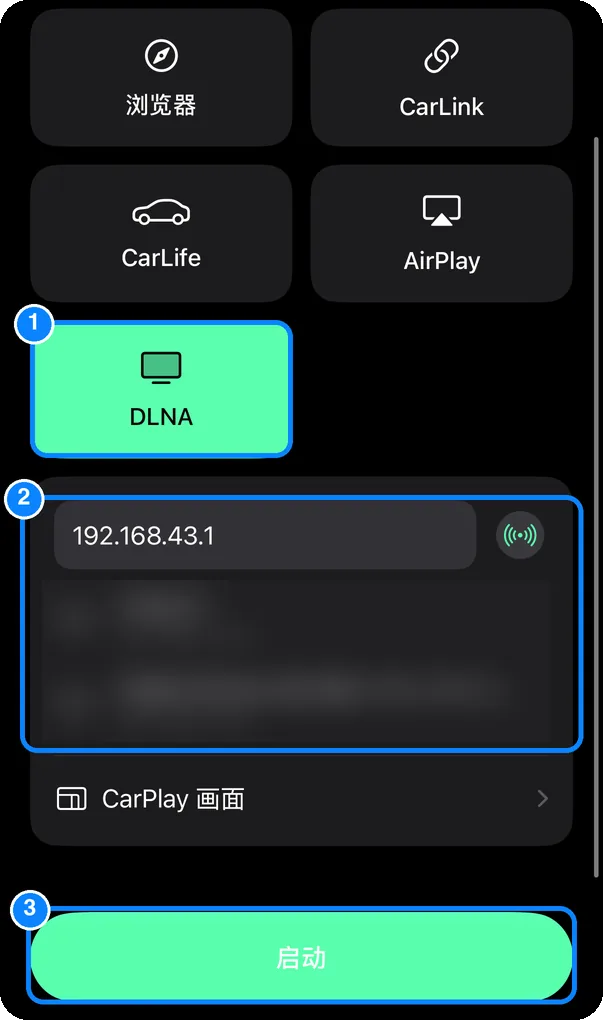
On the app’s home screen, choose DLNA, select your head unit in the list, then tap Start. If it isn’t found nearby, enter the head unit’s IP address above the list. Then watch the ring on the home screen:
- % Percentage counting up: CarPlay is starting; wait for it to finish.
- Icon pulsing: CarPlay has started and is waiting for the head unit to connect. Go to the head unit now.
- Checkmark: the head unit is connected.
- Exclamation mark: the head unit didn’t connect; the app keeps retrying.
Keep it running
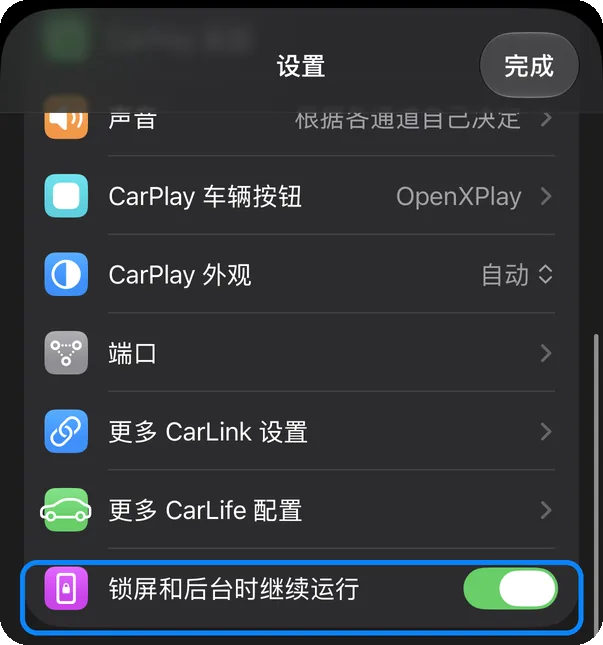
In Settings, turn on Keep running when locked. Without it, the connection stops when you switch to another app or lock the iPhone.
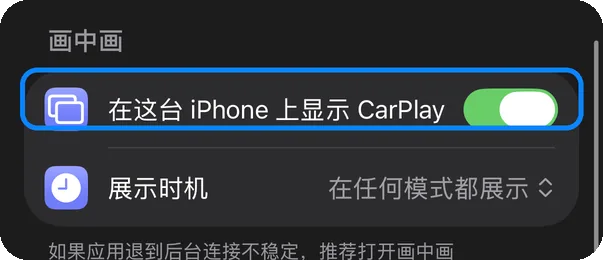
To see the CarPlay picture on the iPhone at the same time, turn on Show CarPlay on this iPhone under Settings → Picture in Picture.
FAQ
The percentage never finishes, or starting fails?
Check that the name, password and band saved under Settings → Wi-Fi match the network the iPhone is on. If they all match, forget the saved OpenXPlay car under Settings → General → CarPlay on the iPhone and start again.
It keeps waiting for the head unit?
CarPlay has started on the iPhone; only the head unit is missing. With CarLink, choose another scheme, or close the head unit’s phone-link app and open it again; with the browser, check that the address entered in the head unit browser matches the one on the home screen; with CarLife or casting, check that the head unit is on its screen waiting for a connection.
It disconnects when I switch to another app?
Turn on Keep running when locked in OpenXPlay Settings.
No sound?
Connect the iPhone to the head unit over Bluetooth and switch the head unit’s audio source to Bluetooth.
For other questions, see the FAQ. If it still doesn’t work, tap Send logs on the home screen and describe your car and what happens in the community.
Tell us how it went
Once connected, the app occasionally asks whether CarPlay works in your car; answer It works or pick the problem you hit. It asks at most once a day. These answers drive the progress shown in Car compatibility.