
Head unit browser
If the head unit has a browser, open the address the iPhone gives you in it to see and use CarPlay.
Tesla, NIO, Li Auto and Zeekr each need different preparation; see their steps in Get started: Tesla, NIO, Li Auto, Zeekr.
Put the iPhone and the head unit on the same Wi-Fi
Under Settings → Wi-Fi, enter the name and password of the Wi-Fi this iPhone joins and choose its band. Then connect both the iPhone and the head unit to this Wi-Fi.
- Works: a router, the car’s hotspot, an Android phone’s hotspot, a pocket Wi-Fi.
- Doesn’t work: this iPhone’s own Personal Hotspot.
Choose Browser and start
On the app’s home screen, choose Browser and tap Start.
The first time, the app asks how the devices are connected: choose 2 devices or 3 devices, then the connection that matches yours. You can change it later in Settings.
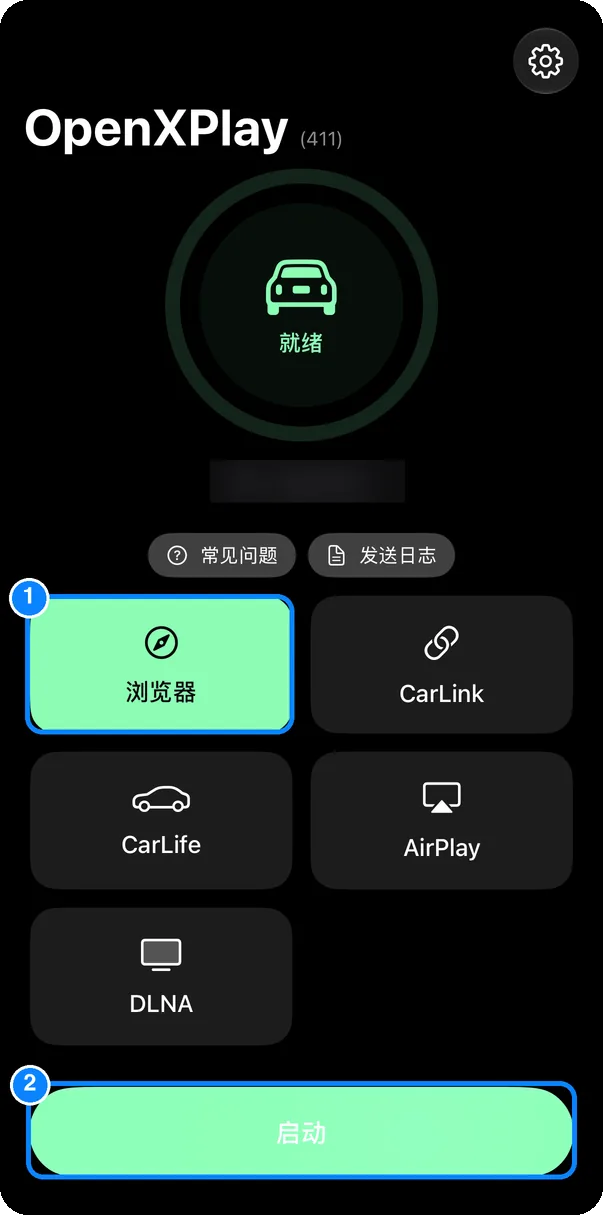
Wait for the address and open it in the head unit browser
After you start, watch the ring on the home screen:
- % Percentage counting up: CarPlay is starting; wait for it to finish.
- Icon pulsing: CarPlay has started and is waiting for the head unit to connect. Go to the head unit now.
- Checkmark: the head unit is connected.
- Exclamation mark: the head unit didn’t connect; the app keeps retrying.
When the ring completes, the home screen shows an address. Enter it in the head unit browser; once the page opens, tap the screen once and CarPlay appears.
If the browser says the connection isn’t secure, choose to continue. If it won’t let you continue, set up trusted HTTPS.
Send the sound to the car
Connect the iPhone to the head unit over Bluetooth and switch the head unit’s audio source to Bluetooth; CarPlay’s sound then plays through the car.
When the head unit browser can’t open the address
Some head units still can’t reach the iPhone on the same Wi-Fi, or can’t run a hotspot and join Wi-Fi at the same time. Then use another way to connect and change the connection to match it in the app’s settings. Once you choose your car and Browser, the Setup steps button on the home screen shows these steps too.
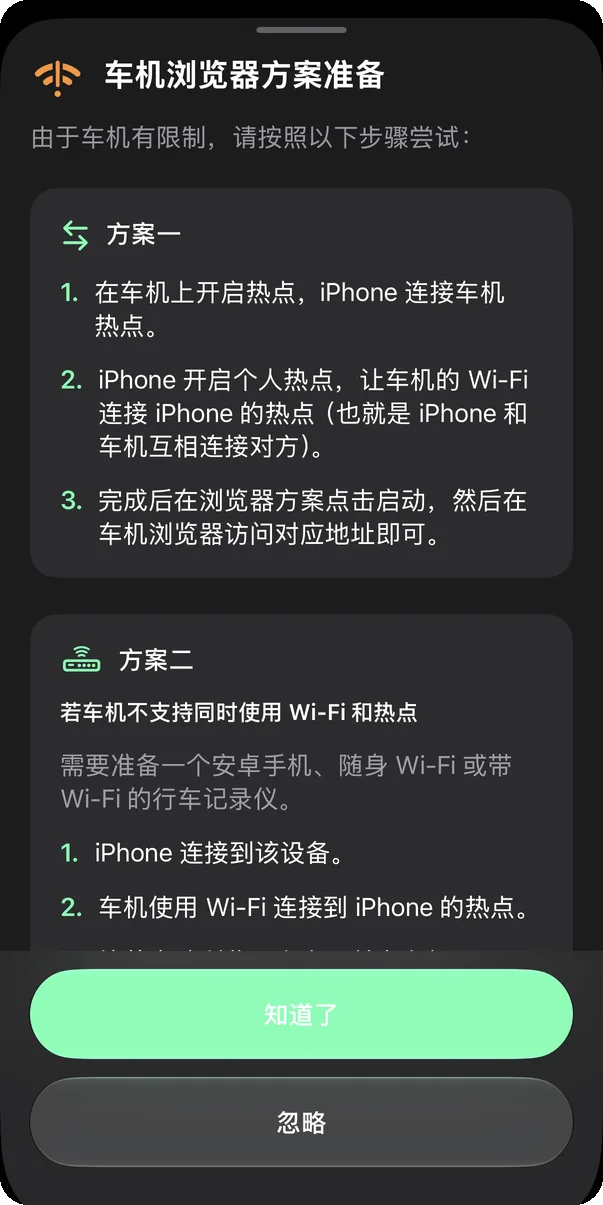
Setup 1: two devices joined to each other
Only the iPhone and the head unit.
- Turn on the hotspot on the head unit and join it from the iPhone.
- Turn on the iPhone’s Personal Hotspot and join it from the head unit’s Wi-Fi.
- In the app, choose Browser and start, choose the connection 2 devices → Each joins the other’s hotspot, then open the address shown in the head unit browser.
Setup 2: three devices
Add an Android phone, a pocket Wi-Fi or a dashcam with Wi-Fi.
- Turn on this device’s hotspot and join it from the iPhone.
- Join the head unit’s Wi-Fi to the iPhone’s Personal Hotspot.
- In the app, choose Browser and start, choose the connection 3 devices → Head unit joins this iPhone’s hotspot, then enter the address shown in the head unit browser.
Setup 3: Tesla mode
When neither of the first two setups works on a NIO, Zeekr or Li Auto, use Tesla mode.
Trusted HTTPS
The browsers of NIO, Zeekr and some other head units refuse to open “not secure” addresses. Then go to Settings → Web output → HTTPS:
- Address name: no account needed; just select it.
- Public name: uses a domain from DuckDNS, dynv6, Alibaba Cloud or Tencent Cloud. Recommended for Tesla and Zeekr; the steps for each are in Trusted HTTPS.
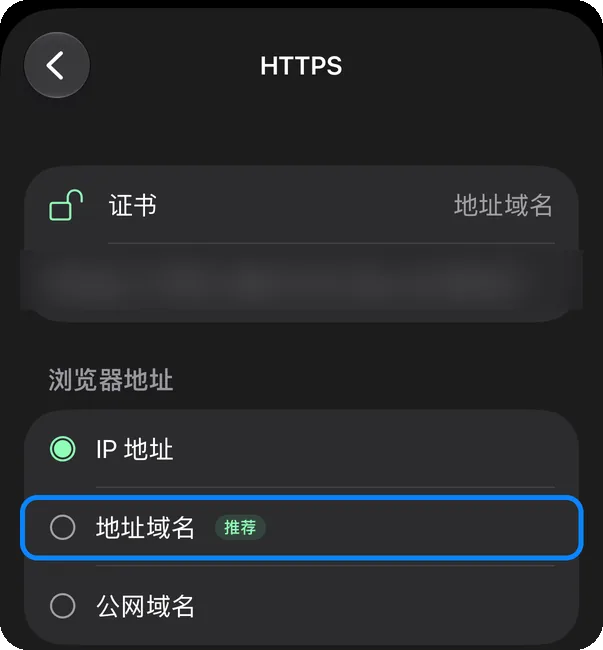
Start again after changing it, and open the new address in the head unit browser.